How to Add a Thumbnail to YouTube Shorts (2026: Custom Uploads Are Here)
New — July 2026After years of saying no, YouTube announced on 24 July 2026 that creators can finally upload custom thumbnails for Shorts. The rollout started the next day. Two catches: it's YouTube Partner Program channels first, and uploads happen on desktop — with wider access promised "over time".
Quick answer: there are now three ways to set a Short's thumbnail. Upload your own image in desktop YouTube Studio (Partner Program channels), pick one of three suggested frames on desktop, or scrub to any frame in the YouTube mobile app. If uploads haven't reached your channel yet, the frame trick below still gives you a fully designed cover today.
Do YouTube Shorts even need a thumbnail?
This is the question worth answering before you spend an evening designing one — and most guides skip it.
Your Shorts thumbnail is not shown in the swipeable Shorts feed. That feed plays video immediately, so nothing you choose there changes what a scrolling viewer sees. If that were the whole story, thumbnails wouldn't matter at all.
But it isn't. The thumbnail is what appears in search results, on hashtag and audio pivot pages and on your channel page — the surfaces YouTube names — plus the Shorts shelf on the homepage. Every one of them is a place where someone is browsing rather than swiping. Those are exactly the moments when a person decides whether your channel is worth subscribing to. A grid of blurry mid-motion frames reads as careless; a grid of deliberate covers reads as a real channel.
So: it won't rescue a Short in the feed, and it will absolutely shape how your channel looks to anyone who lands on it.
The three ways to set a Shorts thumbnail
1. Upload a custom image — desktop Studio, Partner Program
The new option. Open YouTube Studio → Content, click the Short, and use the thumbnail section to upload your own image, exactly like a long-form video. If you published from your phone, just come back to a desktop browser afterwards and set it there.
Don't see it? The rollout is gradual and started with Partner Program channels. If your channel isn't monetised yet or the option simply hasn't appeared, skip to methods 2, 3 or the frame trick — they all work today.
Worth knowing if you're not in YPP yet: the entry requirements double on 1 February 2027 — 8,000 watch hours or 20M Shorts views instead of 4,000 and 10M. Since custom Shorts thumbnails are gated behind the programme, that deadline now matters for this feature too. Details in our breakdown of the 2027 Partner Program changes.
2. Choose one of three suggested frames — desktop
Also new on desktop: YouTube now offers three auto-picked frames from your Short, the same way it has for long-form videos. It's the fastest option, and often surprisingly decent — the algorithm tends to favour sharp frames with faces. But you're limited to what it offers.
3. Scrub to any frame — the mobile app
The original method, and still the most flexible if you can't upload: open the YouTube app → Your videos → tap the Short → Edit → the thumbnail scrubber. You can slide to any frame in the video, not just three, and add text and filters on top of it.
Use the regular YouTube app for this, not the YouTube Studio app — people lose a lot of time looking in the wrong one.
If you can't upload yet: make the frame yours
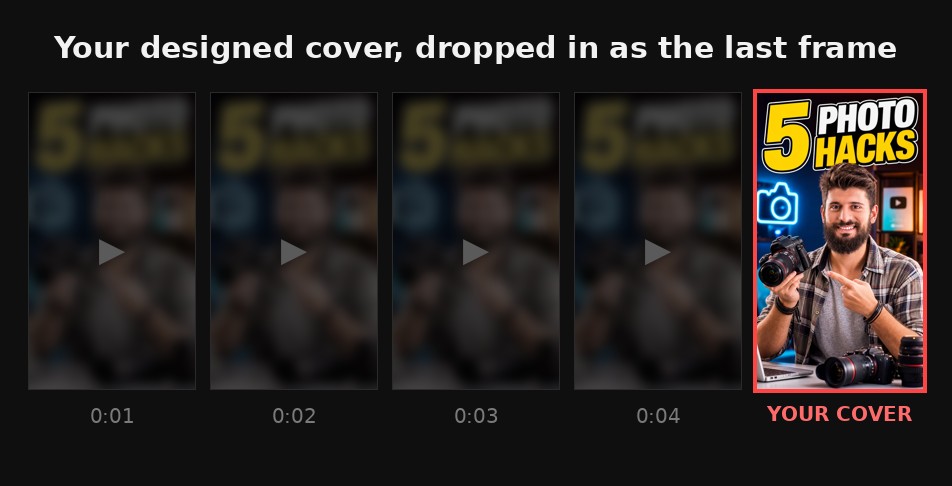
Here's the trick that made this article popular before the update, and it's still the answer for every channel outside the Partner Program: if your designed cover is one of the video's frames, the frame-picker can select it.
Design a 9:16 cover
Make a proper vertical cover at 720×1280 or larger — bold text, a clear face, high contrast — not a random screenshot. If you'd rather not design it by hand, BYSO's thumbnail generator makes vertical 9:16 covers from a text description, and you can add your own photo so it's your face on the cover, not an invented stranger.
Embed it, export, upload
Drop the cover into your editor as the last 1–2 seconds of the Short — the end reads as an end card instead of interrupting your hook. A single held frame is enough; it only has to be findable. Export, upload as usual, then open the thumbnail scrubber and slide to your cover: it'll be the crisp, text-on frame that stands out from the motion blur around it.
Need the cover itself? BYSO generates click-ready 9:16 thumbnails from a text prompt — add your own photo, pick from 29 styles, get it in about a minute.
Make a 9:16 cover →How to choose a frame that actually gets tapped
Whether you're picking from three suggestions or scrubbing manually, the same rules decide whether the thumbnail earns a tap:
- Sharp beats interesting. A slightly duller frame in focus always outperforms a dynamic one with motion blur.
- Eyes open, expression readable. Scrub past every half-blink — they're everywhere in vertical video and they look terrible in a grid.
- Prefer frames that already have text. If your Short has burned-in captions, a frame with a short punchy line beats a clean but silent one.
- Check it small. Your Shorts sit in a tight grid on your channel page. Shrink it to postage-stamp size — if the subject is unclear, pick another frame.
- Look at it next to your other Shorts, not on its own. Consistency across the grid is what makes a channel look intentional.
That last one is easy to eyeball with our free thumbnail preview tool — it drops your image into a real YouTube feed next to actual competing videos, including the brutal 168 px sidebar size.
Specs and limits
| Thing | Where it stands |
|---|---|
| Custom upload | Partner Program channels, desktop, rolling out since 25 July 2026 |
| Suggested frames | Three options, desktop |
| Any frame | YouTube mobile app, all channels |
| Design ratio | 9:16 vertical to match the Short; keep faces and text centred, since surfaces crop differently |
| File size | Up to 2 MB from mobile, 50 MB from desktop |
| Formats | JPG, PNG, GIF |
| A/B testing | Not available for Shorts. Test & Compare handles up to three variants for long-form only |
YouTube hasn't published Shorts-specific resolution requirements for uploaded thumbnails yet. Designing at 9:16 to match the Short is the safe default — and centring the important stuff protects you whichever way a given surface crops it. Full breakdown with the safe-zone diagram: Shorts thumbnail size & specs.
Things that trip people up
- Looking for upload on mobile. Custom image upload is a desktop feature; the phone gives you frames only.
- Assuming it fixes feed performance. It doesn't — the Shorts feed doesn't show thumbnails. It fixes how your channel and search results look.
- Wrong aspect ratio. A 16:9 cover inside a 9:16 slot means bars or a bad crop. Design vertical.
- Cover frame held too long. Five seconds of a static card hurts retention. One second, or a single end frame, is plenty.
- Expecting instant change. Feeds cache; give a new thumbnail a little time before deciding it didn't save. If it still won't appear, work through every cause of a Shorts thumbnail not showing.
- Forgetting it works off-YouTube too. A real 9:16 cover doubles as your pinned image when you cross-post to TikTok or Reels.
FAQ
Can you upload a custom thumbnail for a YouTube Short?
Yes, since late July 2026 — Partner Program creators can upload a custom image from desktop YouTube Studio. Everyone else picks a frame from the video, and can use the frame-embed trick to make that frame a designed cover.
Do YouTube Shorts need a thumbnail?
It isn't shown in the swipeable Shorts feed, so it won't change performance there. It does appear in search, on hashtag and audio pages, on your channel page and on the homepage Shorts shelf — so it shapes how browsing viewers judge your channel.
How do I add a thumbnail to a YouTube Short?
Upload a custom image in desktop Studio (Partner Program), choose one of three suggested frames on desktop, or scrub to any frame in the YouTube mobile app.
How do I choose a good thumbnail for a Short?
Sharp over dynamic, eyes open, expression readable, and check it at small size next to your other Shorts. Frames with short burned-in text usually win.
Can I change a Shorts thumbnail on desktop?
Yes — desktop Studio now offers both suggested frames and, for Partner Program channels, custom upload. Published from your phone? Come back on desktop and set it there.
Can I A/B test Shorts thumbnails?
No. Test & Compare supports three variants for long-form videos, but Shorts are excluded at launch.
What size should a Shorts thumbnail be?
Design 9:16 vertical (720×1280 or larger) and keep faces and text near the centre, since different surfaces crop it differently.
Get a click-ready 9:16 cover for your next Short — describe it, add your photo, pick a style. Or check how your current one holds up in a real feed first.
Preview it in the feed — free →